Gates Table
The Gates page displays a table with the gates (AND, OR, Vote and Transfer gates) of the selected systems. It is the counterpart of the Primary Events page: the primary events are not listed here.
To go to the Gates page, click on the Gates tab on the navigation bar, next to Primary Events.
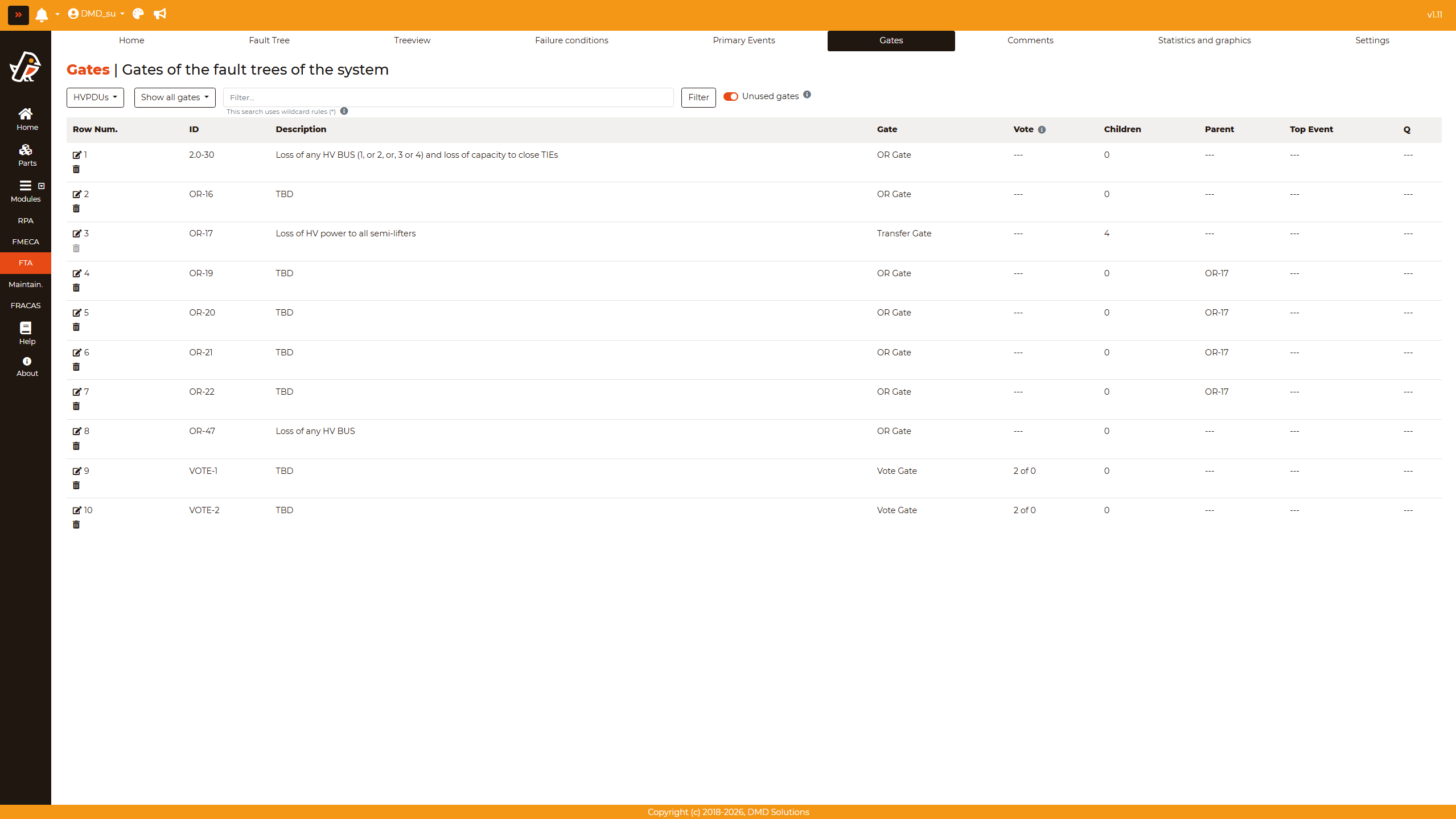
Three dropdowns, each one with its title on its left (Project:, Systems: and Top event:), choose what the table shows:
Project: By clicking on the
Existing Projectsdropdown, the available projects are shown. Choosing one loads the table with all the systems of that project (All systems), so it can be narrowed down afterwards with the systems dropdown.Systems: Shows the systems of the chosen project, each one with a checkbox, so several systems can be checked at once.
All systemschecks, or unchecks, all of them. The table follows the checked systems when the dropdown is closed. The dropdown shows the name of the checked system, how many systems are checked, orAll systems.Top event: Shows the fault trees of the checked systems, under the name of each system when there are several of them.
Click on Show all gates to load all the gates of the checked systems. Click on one fault tree to load only the gates of the selected fault tree: its top event and every gate that hangs from it.
The checked systems and the chosen fault tree are kept in the address of the page, so they stay as they are when the page is refreshed.
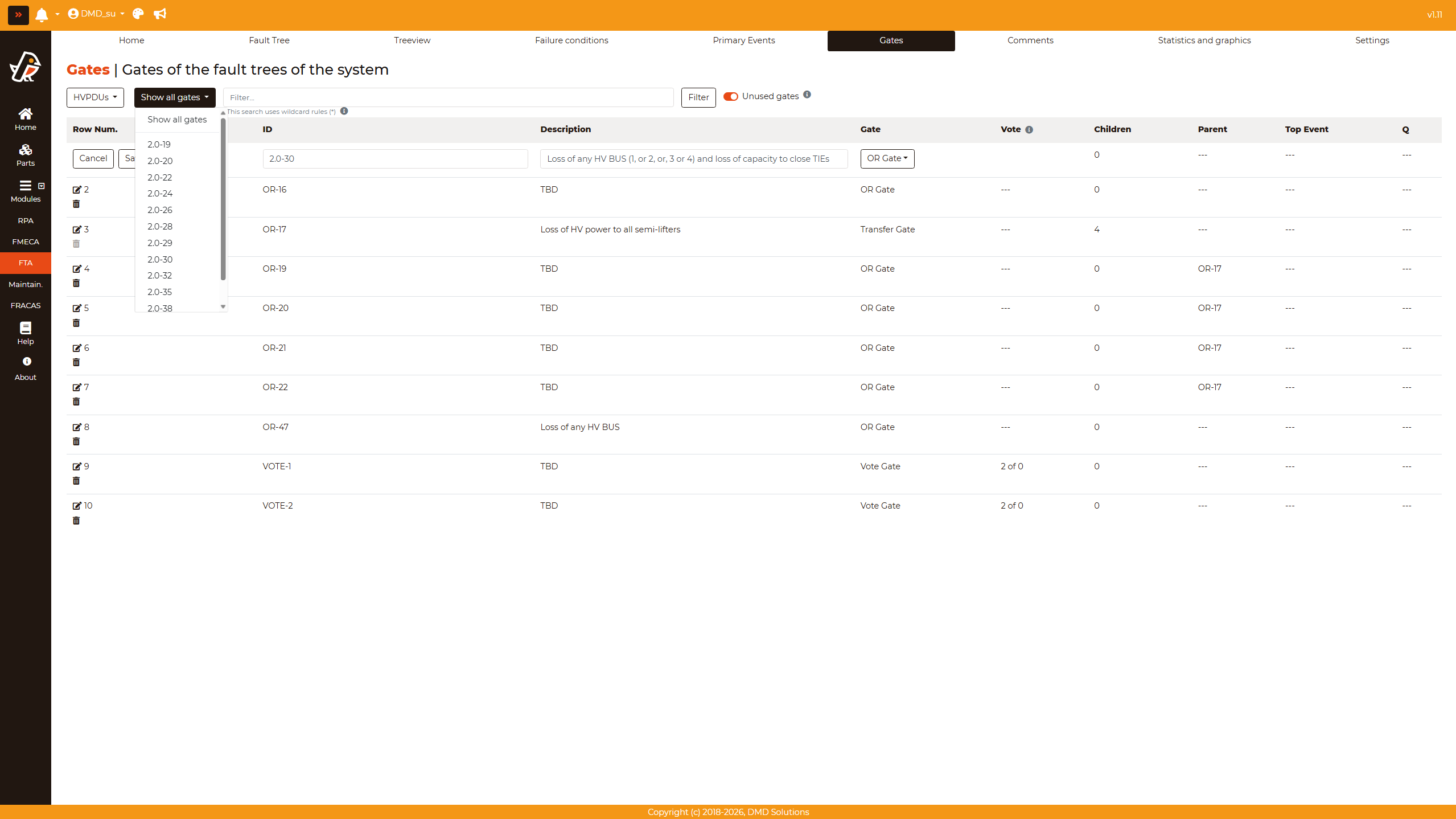
The Filter field narrows the table down by keyword. It follows the same wildcard rules (*) as the Primary Events page.
The table displays the following columns:
Row. Num.: The number of the row. This column contains the Edit button and the Delete button of the gate.
ID: Shows the gate ID. Click on it to open the gate in the Fault Tree page.
Description: Shows the gate description.
Gate: Shows the type of gate: AND Gate, OR Gate, Vote Gate or Transfer Gate.
Vote: Shows the threshold of a vote gate as “K of N”: the vote gate happens when at least K of its N children happen. For the rest of gates “—” is shown.
Children: Shows the number of nodes that hang directly from the gate.
Parent: Shows the ID of the parent of the gate. The top events have no parent. With
Grouped gates, the column is Parents (see Grouped Gates).Top Event: Shows the ID of the top event of the fault tree the gate belongs to. For a top event, its own ID is shown. For a gate that belongs to no fault tree, “—” is shown. With
Grouped gates, the column is Top Event (Repeats) (see Grouped Gates).Q: Shows the gate Unavailability. If the fault tree has not been computed yet, “—” is shown.
Unused Gates Filter
A gate is unused when it does not belong to any fault tree: it does not hang from a top event and it is not a top event itself. This happens, for instance, with the gates that are left behind when a branch is removed from the diagram.
The Unused gates switch, next to the Filter button, shows only those gates. It is off by default: when the page is opened, the table lists every gate of the checked systems. Turn the switch on to see only the unused ones.
The switch works together with the keyword filter.
The state of the switch is kept in the address of the page, so it stays as it is when the page is refreshed or when other systems are checked.
The filter only applies when
Show all gatesis selected. When a single fault tree is selected, all its gates are used, so the switch is shown off and greyed out, it cannot be turned on, and the table shows every gate of the tree. SelectingShow all gatesagain brings the switch back as it was.
Grouped Gates
The Ungrouped / Grouped gates switch, next to the Filter button, works as the Grouped BE option of the Primary Events page: the table shows one row per gate ID instead of one row per gate. A gate repeated in several places, in one fault tree or in several of them, takes a single row:
Parents: The IDs of the parents of every copy of the gate.
Top Event (Repeats): Every fault tree with a copy of the gate and, in brackets, how many times the gate is repeated in it (its copies in the tree minus one). A copy that belongs to no fault tree is shown as “—“.
The rest of the columns show the first copy of the gate, and its Edit and Delete buttons work on it. Editing changes every copy of the gate, as usual. Deleting removes that copy, as long as it is unused, together with its branch: the rest of the copies stay.
The switch works together with the rest of the filters, which apply to the copies: with the Unused gates switch on, the rows only count the unused copies, and with a fault tree selected, only the copies of that tree. The switch is kept in the address of the page as well.
Edit a Gate
To edit a gate, click on the Edit icon. The row turns into a form where the ID, the description, the type of gate and the vote threshold can be changed. Click on Save to store the changes or on Cancel to discard them. This option requires the change permission of the FTA module.
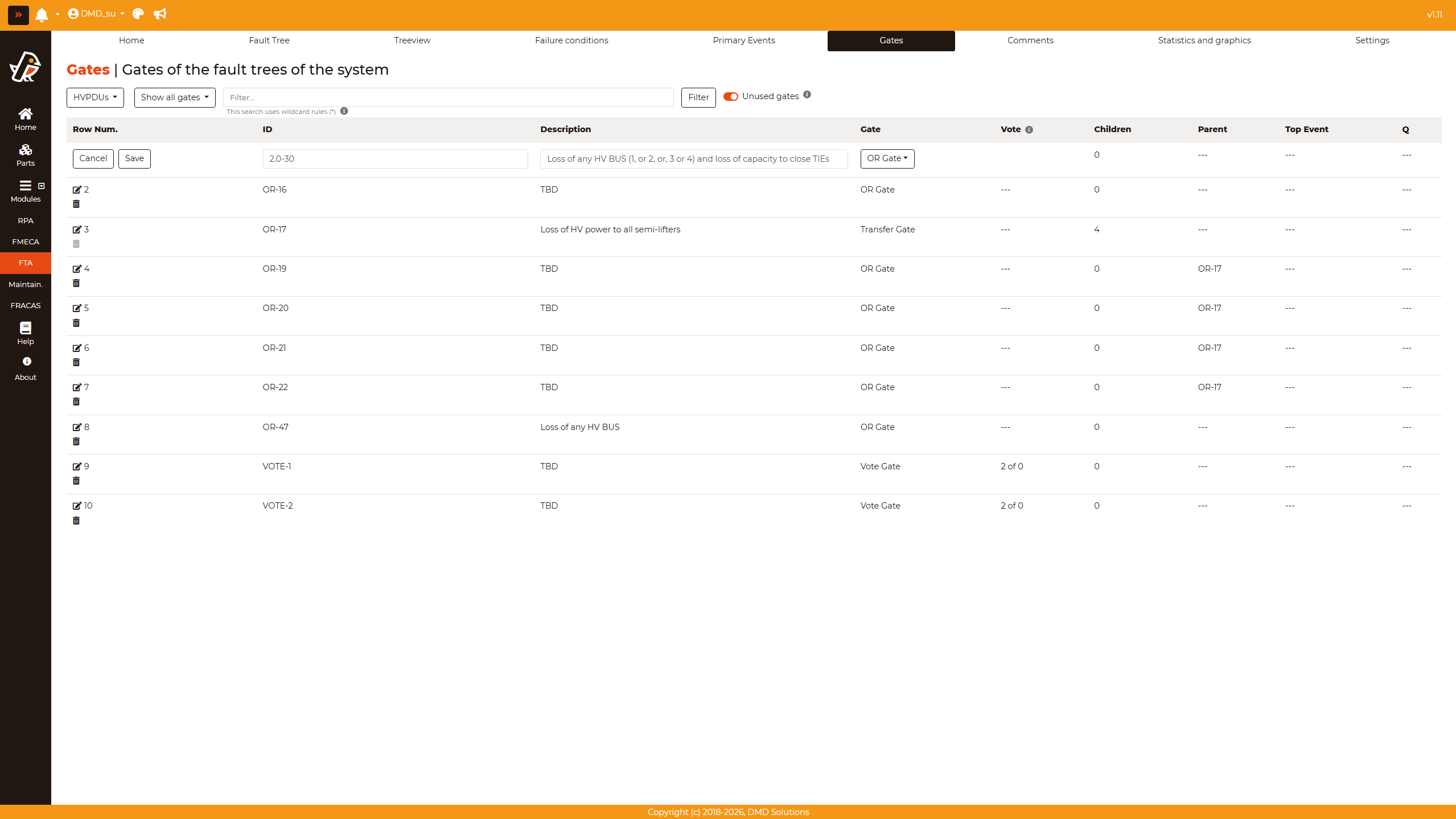
ID: It cannot be empty, and it cannot be used by another node of the project. The new ID is written in every node of the project that shares it: the repetitions of the gate and the transfer gates pointing at it.
Type of gate: AND Gate, OR Gate or Vote Gate.
Vote threshold: Only for vote gates. It must be a positive number lower than the number of children (K < N), and a vote gate needs at least 2 children.
The ID and the type of a transfer gate come from the fault tree it points to, so they cannot be changed from this page.
After saving, the probability and the cut sets of the affected fault trees are no longer up to date, and the fault trees have to be computed again.
Delete a Gate
To delete a gate, click on the Delete icon below the Edit icon of its row. This option requires the delete permission of the FTA module.
Only the unused gates can be deleted: the gates that do not belong to any fault tree and are not a top event.
When a gate is deleted, the whole branch below it is deleted too: its children, their children, and so on down to the primary events. The confirmation tells how many nodes go with the gate. The rest of the project is not touched: if an event of the branch is repeated inside a fault tree, that repetition stays.
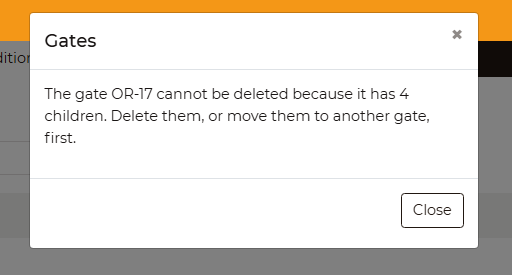
The icon is shown faded for the gates that cannot be deleted; clicking on it explains why. A gate is not deleted either when a node of the branch below it belongs to a fault tree, as deleting the branch would remove that node from the tree: the message lists those nodes.
For the rest of gates, a confirmation is asked before deleting it and its branch. This cannot be undone.
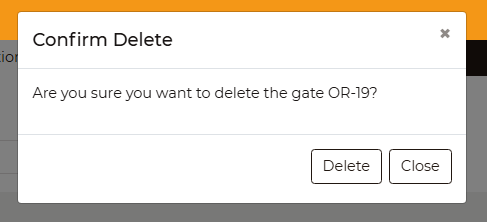
The unused gates are the ones that can be deleted, so the Unused gates filter is the quickest way to find them.